This topic shows how to create an add-in using Visual C++ in Microsoft Visual Studio that adds a menu item to the context-sensitive and Tools menus of vaults in File Explorer. You must be familiar with the process of creating a C++ COM DLL in the development environment that you use.
-
Create the C++ project.
-
Start Microsoft Visual
Studio.
- Select File >
New > Project > Visual C++ > MFC/ATL > ATL Project.
-
Type the name of your
project in Name.
- Click Browse and navigate to the folder where to create your project.
- Click OK.
-
If you intend on using MFC, select Application Settings > Support MFC in the ATL Project Wizard dialogMyAdd.
-
Click Finish to generate the project.
-
Start Microsoft Visual
Studio.
-
Modify the project's settings.
-
Right-click the project in Solution Explorer, and select Add > Class.
-
In the Add Class dialog, select ATL > ATL Simple Object.
-
Click Add.
-
Type MyAddIn in Short name.
-
Click Next and Next.
-
Select Custom in the Interface and Both in the Threading Model.
-
Click Finish.
-
Select View > Class View and expand your project in the Class View window.
-
Right-click CMyAddIn and select Add > Implement Interface.
-
Select Project and select the most recent SOLIDWORKS PDM Professional type library, Edm.tlb, from the Available type libraries list.
NOTE: If the type library is not in the list, you must copy Edm.tlb from the API folder on the CD to project_path\project_name\project_name. Then select File, browse to project_path\project_name\project_name, and select Edm.tlb.
-
Select IEdmAddIn5 in Interfaces .
-
Click the single right-arrow button to move IEdmAddIn5 to Implement Interfaces, and click Finish.
Two new methods, IEdmAddIn5::GetAddInInfo and IEdmAddIn5::OnCmd, are added to your class. -
Select File > Save All.
-
-
Implement IEdmAddIn5::GetAddInInfo by replacing STDMETHOD(GetAddInInfo)in MyAddin.h with the following code.
STDMETHOD(GetAddInInfo)(EdmAddInInfo * poInfo, IEdmVault5 * poVault, IEdmCmdMgr5 * poCmdMgr)
{
//The AFX_MANAGE_STATE macro is needed for MFC applications but should not
//be used for applications that are MFC-free
AFX_MANAGE_STATE(AfxGetStaticModuleState());
if (poInfo == NULL || poCmdMgr == NULL )
return E_POINTER;
//Return some information to the Properties dialog box
poInfo->mbsAddInName= SysAllocString( L"My first add-in" );
poInfo->mbsCompany = SysAllocString( L"The name of my company" );
poInfo->mbsDescription= SysAllocString( L"This is a very nice add-in." );
poInfo->mlAddInVersion = 1;
//SOLIDWORKS PDM Professional 5.2 is required by this add-in
poInfo->mlRequiredVersionMajor = 5;
poInfo->mlRequiredVersionMinor= 2;
//Add hooks and menu commands to SOLIDWORKS PDM Professional
//Below is a menu command that appears in the Tools
//and context-sensitive menus of a vault in File Explorer
poCmdMgr->AddCmd( 1, bstr_t("My first menu command"), EdmMenu_Nothing, bstr_t(""), bstr_t(""), 0, 0 );
return S_OK;
} -
Implement IEdmAddIn5::OnCmd by replacing STDMETHOD(OnCmd)in MyAddin.h with the following code.
STDMETHOD(OnCmd)(EdmCmd * poCmd, SAFEARRAY * * ppoData)
{
//The AFX_MANAGE_STATE macro is needed for MFC applications, but should not
//be used for applications that are MFC-free
AFX_MANAGE_STATE(AfxGetStaticModuleState());
if (poCmd == NULL ||ppoData == NULL)
return E_POINTER;
MessageBox((HWND)poCmd->mlParentWnd, L"Hello World!", L"SOLIDWORKS PDM Professional", MB_OK );
return S_OK;
}
NOTE: If you copy the code from this topic and paste it into the IDE, delete any characters or spaces that offend the compiler. On a 64-bit computer, you must replace L with bstr_t() for the strings in the MessageBox.
-
Specify the project configuration properties:
-
Right-click the project name in Solution Explorer and select Properties.
-
Select Configuration Properties > General.
Ensure that the properties are configured as:-
Output Directory: $(SolutionDir)$(Platform)\$(Configuration)\
-
Configuration Type: Dynamic Library (.dll)
-
Use of MFC: Use MFC in a Shared DLL
-
Use of ATL: Dynamic Link to ATL
-
Character Set: Use Unicode Character Set
-
-
Select Linker > General.
Ensure Output File is:-
$(SolutionDir)$(Platform)\$(Configuration)\$(TargetName)$(TargetExt)
-
-
Select Linker > Input.
Ensure that Module Definition File is .\project_name.def. -
Select Linker > Embedded IDL.
Ensure the properties are configured as follows:-
Type Library: $(SolutionDir)$(Platform)\$(Configuration)\$(ProjectName).tlb
-
TypeLib Resource ID should be empty. Delete any characters appearing in this row.
-
-
Select MIDL > General.
Select the environment in the Target Environment dropdown that most closely matches your environment. -
Select MIDL > Output.
Ensure the properties are configured as follows:-
Output Directory: $(SolutionDir)$(Platform)\$(Configuration)\
-
Type Library: $(IntDir)project_name.tlb
-
-
-
Click OK.
-
To change the project's type of configuration to Release:
-
In the Solution Explorer, right-click Solution 'project_name' and select Configuration Manager.
-
Click the down-arrow key in the project's Configuration column and select Release.
-
Click Close.
-
-
Save and compile the project for either x32 or x64 to create an add-in DLL that is compatible with your system.
NOTE: See Using .NET Framework in Add-in Applications if a problem occurs at runtime.
-
Add the new add-in, project_name.dll, to the file vault:
- Start up the SOLIDWORKS
PDM Professional Administration tool.
- Expand the vault where
you want to install this add-in. Log in, if prompted.
- Right-click Add-ins and select New
Add-in.
- Select:
- x32:
project_path\project_name\Release\project_name.dll, and click
Open.
- x64:
project_path\project_name\x64\Release\project_name.dll, and click
Open.
The add-in Properties dialog displays the add-in's name, company, add-in version, required version of SOLIDWORKS PDM Professional, package, and description.
- x32:
project_path\project_name\Release\project_name.dll, and click
Open.
- Click OK.
- Start up the SOLIDWORKS
PDM Professional Administration tool.
-
Right-click the list of vaults in File Explorer to show the context menu:
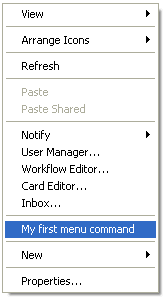
The new menu item appears in the context menu.
-
Select My first menu command on the context-sensitive menu.
-
A message box is displayed.
Use your new add-in to create more advanced menu commands or add-in hooks that allow you to check files in and out of the vault.