This
sample shows how to implement
IEdmAddIn5::GetAddInInfo and
IEdmAddIn5::OnCmd
to create a Visual C# add-in
that is called when the user clicks a button in a file data card. The add-in
opens a dialog box in which the user browses for the file whose data card is
displayed. The add-in copies the path of the selected file to a text field in the
file's data card.
NOTE:
Because SOLIDWORKS PDM Professional cannot force a reload of
add-ins if they are written in .NET, all client machines must be restarted to ensure that the latest version of the add-in is used.
-
Follow Creating Menu Commands (C#) to create a basic add-in.
-
Register a hook to notify your add-in when a user clicks a button in a file data card. Implement IEdmAddIn5::GetAddInInfo as follows:
-
Implement IEdmAddIn5::OnCmd as follows:
public void OnCmd(ref EdmCmd poCmd, ref EdmCmdData[] ppoData)
{
//Respond only to a specific button command
//The button command to respond to begins with "MyButton:" and ends with the name of the
//variable to update in the card
if (Strings.Left(poCmd.mbsComment, 9) == "MyButton:")
{
//Get the name of the variable to update.
string VarName = null;
VarName = Strings.Right(poCmd.mbsComment, Strings.Len(poCmd.mbsComment) - 9);
//Let the user select the file whose path will be copied to the card variable
EdmVault5 vault = default(EdmVault5);
vault = (EdmVault5)poCmd.mpoVault;
IEdmStrLst5 PathList = default(IEdmStrLst5);
PathList = vault.BrowseForFile(poCmd.mlParentWnd, (int)EdmBrowseFlag.EdmBws_ForOpen + (int)EdmBrowseFlag.EdmBws_PermitVaultFiles, "", "", "", "", "Select File for " + VarName);
if ((PathList != null))
{
string path = null;
path = PathList.GetNext(PathList.GetHeadPosition());
//Store the path in the card variable
IEdmEnumeratorVariable5 vars = default(IEdmEnumeratorVariable5);
vars = (IEdmEnumeratorVariable5)poCmd.mpoExtra;
object VariantPath = null;
VariantPath = path;
vars.SetVar(VarName, "", VariantPath);
}
}
return;
} -
Click Build > Build Solution to build the add-in.
- Install
the add-in through the SOLIDWORKS PDM Professional
Administration tool:
- Open the SOLIDWORKS
Professional PDM Administration tool.
- Expand the vault where
you want to install this add-in and log in as Admin.
- Right-click Add-ins and click New
Add-in.
- Browse to
project_path\project_name\project_name\bin\Debug,
click project_name.dll and EPDM.Interop.epdm.dll.
- Click Open.
- Click OK.
- Click OK.
-
Click Cards > File Cards.
-
Double-click Text Card.
-
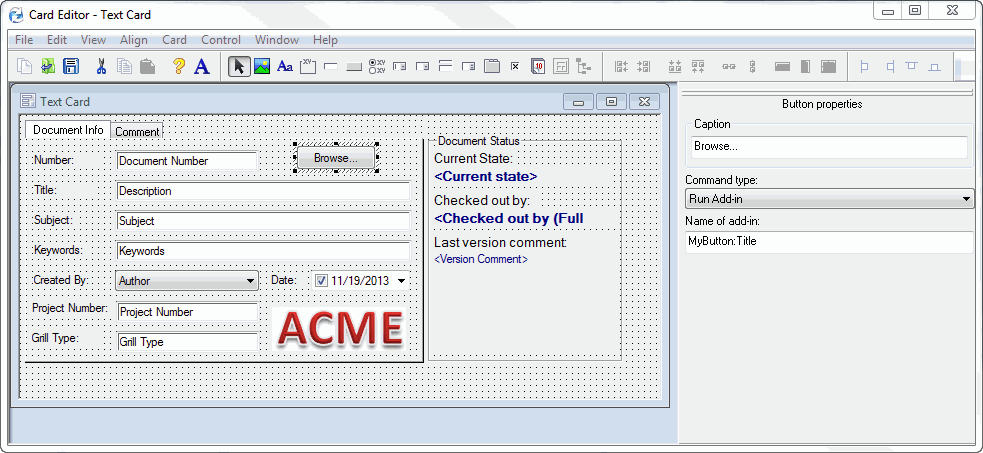
Add a button to the card.
-
Click the button.
-
In Caption, type Browse....
-
In Command type, select Run Add-in.
-
In Name of add-in, type MyButton:Title.
-
Save the card and exit the Card Editor.
-
Open File Explorer on the vault and select a checked-out text file.
-
Click Browse in the file's data card.
-
The Select File for Title dialog box pops up.
-
Browse to and select the checked-out text file.
-
Click Open to copy the path of the selected file to the Title field of the file's data card.
public void GetAddInInfo(ref EdmAddInInfo poInfo, IEdmVault5 poVault, IEdmCmdMgr5 poCmdMgr)
{
//Specify information to display in the add-in's Properties dialog box
poInfo.mbsAddInName = "My serial number generator";
poInfo.mbsCompany = "The name of my company";
poInfo.mbsDescription = "Implements serial numbers";
poInfo.mlAddInVersion = 1;
poInfo.mlRequiredVersionMajor = 5;
poInfo.mlRequiredVersionMinor = 2;
//Notify the add-in when a file data card button is clicked
poCmdMgr.AddHook(EdmCmdType.EdmCmd_CardButton);
}
The second argument to OnCmd, ppoData, is an array of EdmCmdData structures. There is one element in the array when it is called from the file data card. See EdmCmdData for information.
Remarks
In this example, the value of a variable
is set using
IEdmEnumeratorVariable5::SetVar. You
can also read values using
IEdmEnumeratorVariable5::GetVar.
Using a button handler like this add-in, you can also:
-
Retrieve the number of configurations, layouts, or both, in the file by inspecting the EdmCmdData::mpoExtra variable, which contains IEdmStrLst5 of file interfaces.
-
Switch the active configuration.
-
Set focus to a certain control using the members of EdmCmdData.
-
Close the card automatically after the button handler returns by setting the EdmCmdData::mlLongData1 variable to one of the EdmCardFlag constants.