Add-ins
are stored in the file vault and are downloaded to
and COM-registered on the client computer when they are needed. This
presents a problem when developing a new add-in that you want to debug, because the add-in is re-registered in a folder
that is different than the
compiler’s output folder. Testing an add-in in a
production vault can also be a problem, because it affects all users of the
vault.
SOLIDWORKS PDM Professional provides a menu command that solves these two problems, Debug Add-ins.
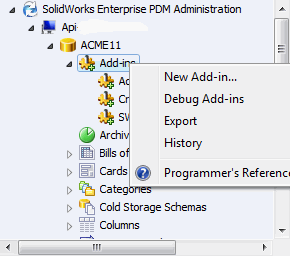
When an add-in is installed as a
debug add-in, it
is registered only on your machine. No other users are affected by it. The add-in
is also loaded from the location where it is registered.
To debug an add-in using File Explorer:
-
Open the Windows Task Manager.
-
Kill the explorer.exe process.
-
Right-click the project name in the Solution Explorer of Visual Studio and click Properties.
-
Click the Debug tab.
-
Click Start external program and type the File Explorer executable's path. For example:
C:\windows\explorer.exe Click Debug > Start Debugging.